FRONIUS BATTERY SCHEDULING
Lock in a peak export rate and save at other times by charging your battery when wholesale prices are low.
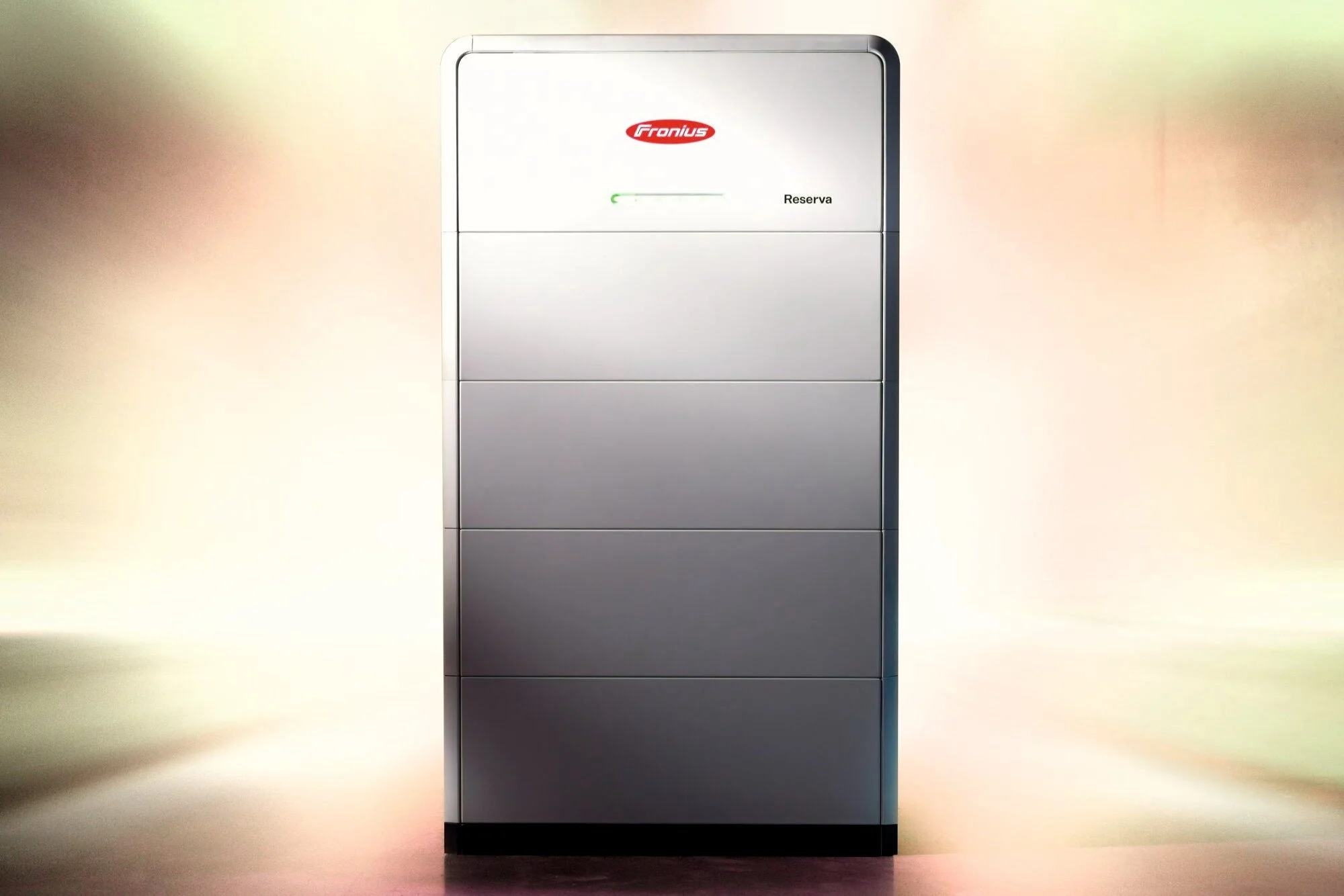
Fronius solar battery scheduling & setup
This guide explains how to configure your Fronius inverter with a compatible battery system to discharge between 5:30pm and 9:30pm using Time of Use (TOU) mode in the Fronius Solar.web platform.
This setup is required if you’re participating in Flow Power’s Happy Hour Electricity Plan.
How to setup your battery
Step 1 –
Confirm your inverter & app access
This guide applies to:
- Fronius GEN24 Plus
- Fronius Symo GEN24 Plus
- Fronius Primo GEN24 Plus
- Paired with compatible batteries (commonly BYD Battery‑Box Premium)
- Using Fronius Solar.web (mobile or web portal)
Ensure:
- Your inverter is online
- You have owner or installer login access
- Your battery shows available capacity
- Energy management features are accessible in settings
Step 2 –
Set work mode to TOU (Time of Use)
- Open Fronius Solar.web
- Select your GEN24 inverter system
- Go to Settings
- Navigate to Energy Management → Battery Management
- Locate the Time-of-Use / Time-controlled battery management settings.
Why TOU?
Time-controlled battery management allows you to schedule when your battery discharges.
If the inverter is left in standard self-consumption mode, the battery will prioritise powering your home and may not export energy during the Happy Hour window.
Step 3 –
Create the 5:30pm–9:30pm discharge window
In the battery schedule settings, add a new discharge period:
Add a new time period:
- Start: 17:30
- End: 21:30
Set this period as Forced Discharge / Scheduled Discharge.
Save settings.
This instructs the battery to discharge during the Happy Hour window.
Step 4 –
Set Minimum State of Charge (Min SOC)
To ensure energy is available for export:
- Navigate to Battery Settings
- Locate Minimum State of Charge (Min SOC)
- Set to 10–20% (typical recommendation)
If Min SOC is set too high (e.g. 40–50%), your battery may stop discharging early and miss part of the 5:30–9:30pm window.
Step 5-
Confirm export settings
Even if your battery discharges, export may be blocked if:
- Export Control is disabled
- Export limit is set to 0 kW
- DNSP export cap is lower than inverter output
- Installer has locked export permissions
Check:
- Go to Inverter Settings → Grid Export Control
Confirm:
- Export limitation is enabled and correctly configured
- Export limit matches your DNSP approval
Commonly:
- 5 kW export limit for single-phase systems
- Higher limits may apply for three-phase systems
If these settings are locked, contact your installer.
Step 6-
Verify during Happy Hour
Between 5:30pm–9:30pm:
Check the Fronius Solar.web dashboard and look for:
- Battery discharging
- Energy flowing to the grid
- Export power greater than 0 kW
If the battery is discharging but export remains 0 kW:
- Your home load is using all battery energy
- Or grid export is restricted by system settings
Earn up to a 35c per kWh evening feed-in tariff
- Keep full control of your solar and battery and earn a peak export rate of 30-35c/kWh (up to 15 kWh) feed-in rate between 5:30-9:30pm, every day.
- Our dynamic pricing rewards you for using energy when it’s cheaper and more renewable.
- Your home’s energy use is matched with 100% GreenPower from one of our renewable projects in your state.
- Better manage their energy use with the help of smart insights via the Flow Power app.

Do I control my own exports?
Yes. You keep full control of your solar and battery system at all times.
Flow Power doesn’t remotely control your inverter or battery. Instead, we give you price signals and a clear export window, and you decide how to respond.
If you have a battery or smart inverter, you (or your installer) can set it up so you charge when energy is cheaper and export more during Happy Hour, but all those settings remain in your hands.
Don’t have a battery?
Compare quotes from your local pre-vetted installers with Solar Choice.
Learn moreGot more questions? we’re here to help
For technical support in Australia, contact:
Fronius Australia
Phone: 03 8340 2900
Website support: https://www.fronius.com/en-au
Australian office: 90-92 Lambeck Drive, Tullamarine VIC 3043
If export settings are locked, you may need to contact your installer directly.